Guide
Mobile Website Testing: Real Device Checks
Test a mobile website on a real device: check touch, forms, keyboard, rotation and network recovery, then record the exact environment and observed outcome.
Test the task on a real phone, then record the environment
Mobile website testing is more than checking whether a narrow layout fits. Choose a critical task, perform it on a named physical device, and record the device model, OS and browser versions, site release, viewport if measured, orientation, input and keyboard state, and network conditions. For each attempt, write the starting state, action, expected result, actual result and reviewed evidence. Mark any unverified result Unknown.
Chrome Device Mode helps approximate a mobile viewport and network conditions from a desktop browser. Chrome says it does not run the page on mobile hardware. Use it to find candidate problems, then test on an actual device before claiming device-specific behavior. Do not describe an emulated run as a physical-device test.
Run a small set of task checks
Touch and navigation
Tap the primary action, nearby controls and any menu or back path. Expect the intended control to respond once and the task state to remain understandable. Record mis-taps, blocked controls, unexpected navigation and whether the browser Back action restores or loses entered data.
Forms and keyboard
Focus each field, enter safe test data and reach the final action with the on-screen keyboard open. Expect labels, errors and Submit to remain usable. Record which field was focused, whether the keyboard covered a control, and what happened after dismissal or scrolling.
Rotation and viewport
Repeat the same task in portrait and landscape. Expect controls and entered state to remain available after rotation. Record the orientation, measured viewport if available, changed focus or scroll position, and any action that became inaccessible.
Slow or interrupted network
For a safe test action, observe loading, interruption and recovery. Expect a clear result or a clear pending state. Record the connection condition, request or console evidence if available, and whether the operation completed before attempting it again.
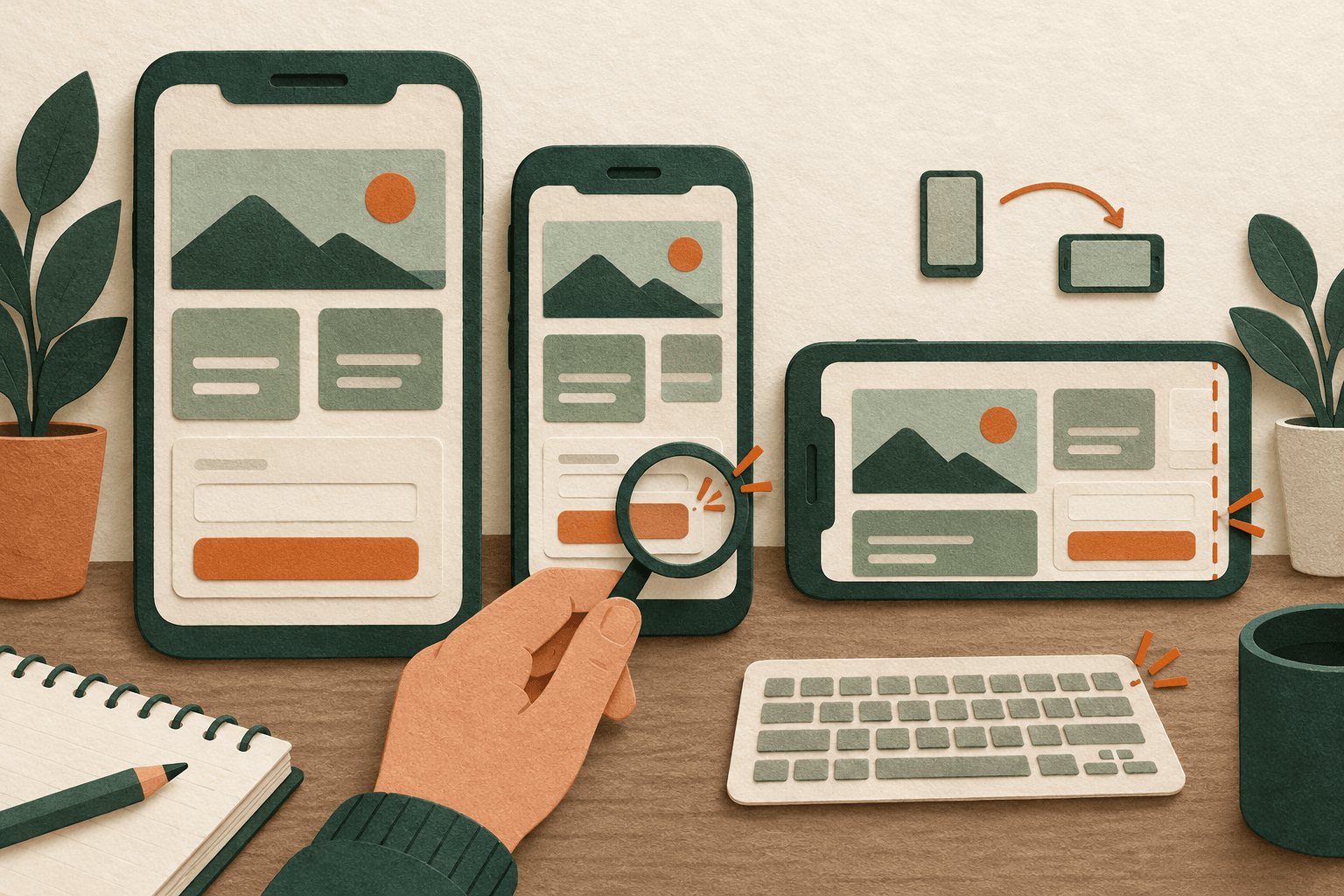
Fictional example: the keyboard covers Submit
In this invented contact-form scenario, a tester opens a form on a phone in portrait, focuses the message field, and sees the on-screen keyboard cover Submit. After dismissing the keyboard, Submit becomes visible. That observation supports a keyboard-state usability report; it does not establish that all phones or browsers behave the same way.
The tester then makes one safe test submission while the connection is interrupted. The page shows no confirmation, but the final submission outcome is Unknown. The tester checks the application’s confirmation or test inbox and available request evidence before deciding whether to submit again. This is especially important for actions that can create duplicate records or payments; do not blindly repeat an uncertain operation.
A reviewable report would include the exact device and software versions, release, portrait viewport if measured, keyboard open and closed states, one-action steps, expected accessible Submit control, actual covered control, interruption condition, and the still-unknown final submission outcome. No physical device test was performed for this fictional example.
Decide which device result needs a second check
Choose the first physical phone from the devices your intended users actually use or a device named in a support report. Run the same task with the same safe data on that phone and in a desktop emulation, recording the two environments separately. If Submit is covered only on the phone, keep the phone result as the finding and investigate keyboard and browser behavior there. If both show it, the layout may be a useful starting point for investigation, but the comparison alone does not identify a CSS cause.
Repeat the phone task once with the browser toolbar expanded and once after scrolling so it collapses, if that browser supports the behavior. Record the visible controls and viewport in each state; do not assume all browsers change the viewport the same way. MDN distinguishes the visible viewport from the layout viewport, which helps explain why the same CSS width may show a different amount of usable screen.
For an interrupted submission, compare the visible confirmation with an authorized test record before any retry; if neither confirms the outcome, leave it Unknown and hand it to the workflow owner. Chrome’s Device Mode limitations explain why a desktop simulation cannot close a device-specific report.
Copy a report-ready record
Select this static template and replace placeholders with your own observations. Keep unknowns explicit and review screenshots, URLs and logs for private data before sharing.
Test surface: Real device [model] / OS [version] / browser [version]
Site release: [build or URL, without private identifiers]
Viewport: [CSS width × height if known; otherwise Not measured]
Orientation and input: [portrait/landscape; touch; keyboard open/closed]
Network: [connection or controlled interruption; exact conditions]
Starting state: [page, signed-in state, test data]
Steps: [one action per line]
Expected: [visible result and whether an operation should complete]
Actual: [only what was observed; Unknown if final submission is unverified]
Evidence: [time, reviewed screenshot/log/request, attempt count]
Next check: [how to verify the final state before another submission]
Plan the environments with the cross-browser test matrix; it begins with cases marked Not tested. Use the reproduction steps guide for repeatable actions, the screenshot annotator to cover private pixels, and the HAR sanitizer if you choose to share network evidence. None of those substitutes for observing the task on the named device.
Published October 9, 2026. Updated October 10, 2026. The checklist and form scenario are original teaching examples; the Device Mode limitation is sourced from Chrome’s linked documentation.
Examples for your team
Builder example
A builder checks a fictional contact form on a named phone and records whether the keyboard hides Submit before testing rotation.
Start your 14-day free trialAgency / QA example
A QA tester records the device, browser, orientation and network state before comparing a form retry with the observed submission result.
Start your 14-day free trial